
What you will need
- My Book Showroom active (see Guide 01: Quick Start → if not done)
- A registered free or PRO license key (see Guide 09: Register Your Free License Key →)
- A list of ISBN-13 (or ISBN-10) numbers — one per book, one per line
- No Amazon account, no paid API key, and no third-party subscription required
ISBN Bulk Lookup uses Google Books and Open Library, both of which are free public services. You do not need an Amazon account or any paid API access to use this feature. A registered license key (free tier or higher) is required to enable the Google Books connection.
Step 1 — Open the Import tab
In the WordPress left sidebar, go to My Book Showroom → Settings. Click the Import / Export tab at the top of the Settings page.
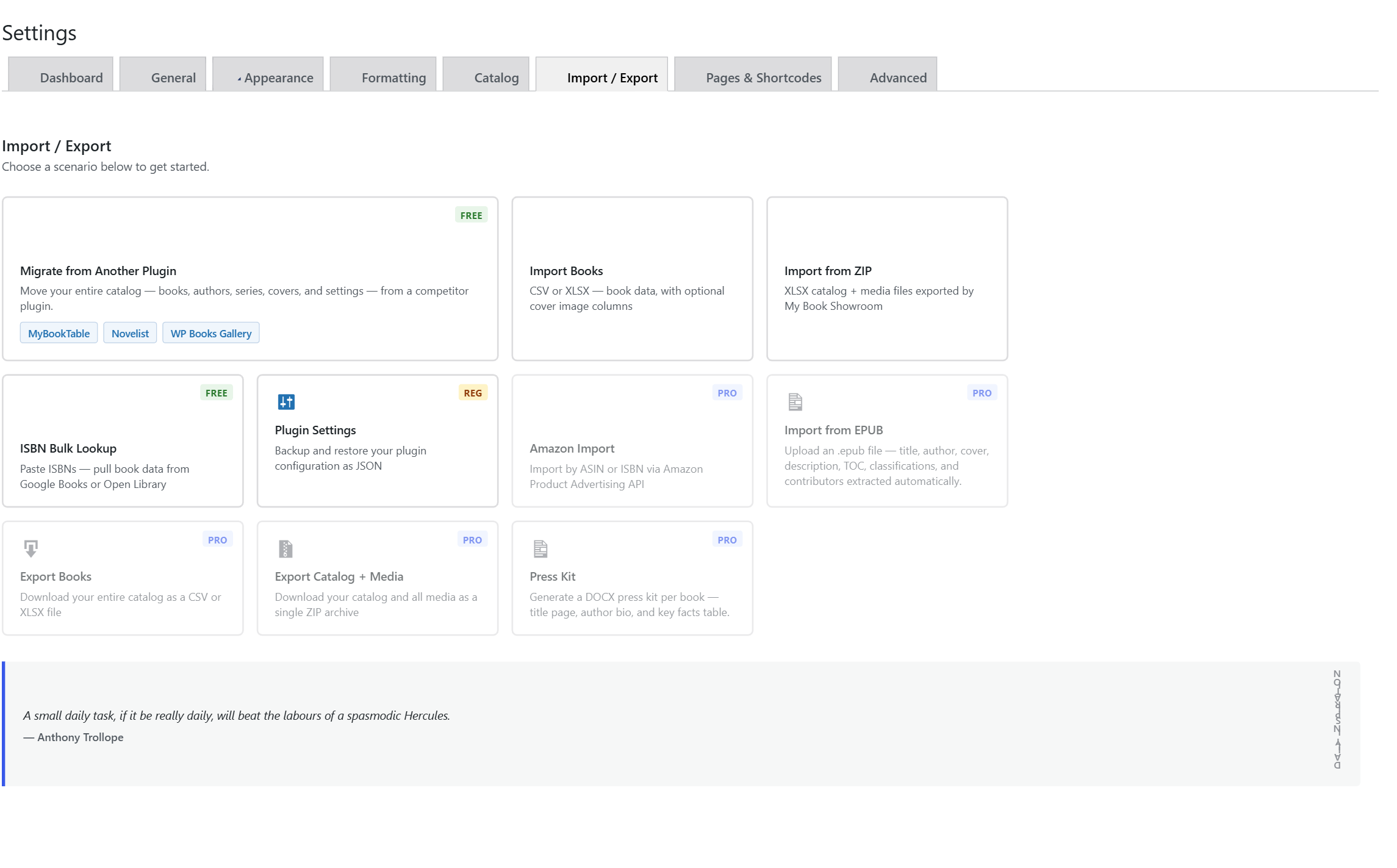
The tab opens with a row of Import Scenario Cards at the top. Each card represents a different import method. You will see options including ISBN Bulk Lookup, CSV Upload, From Another Plugin, and others.
Step 2 — Select the ISBN Bulk Lookup scenario
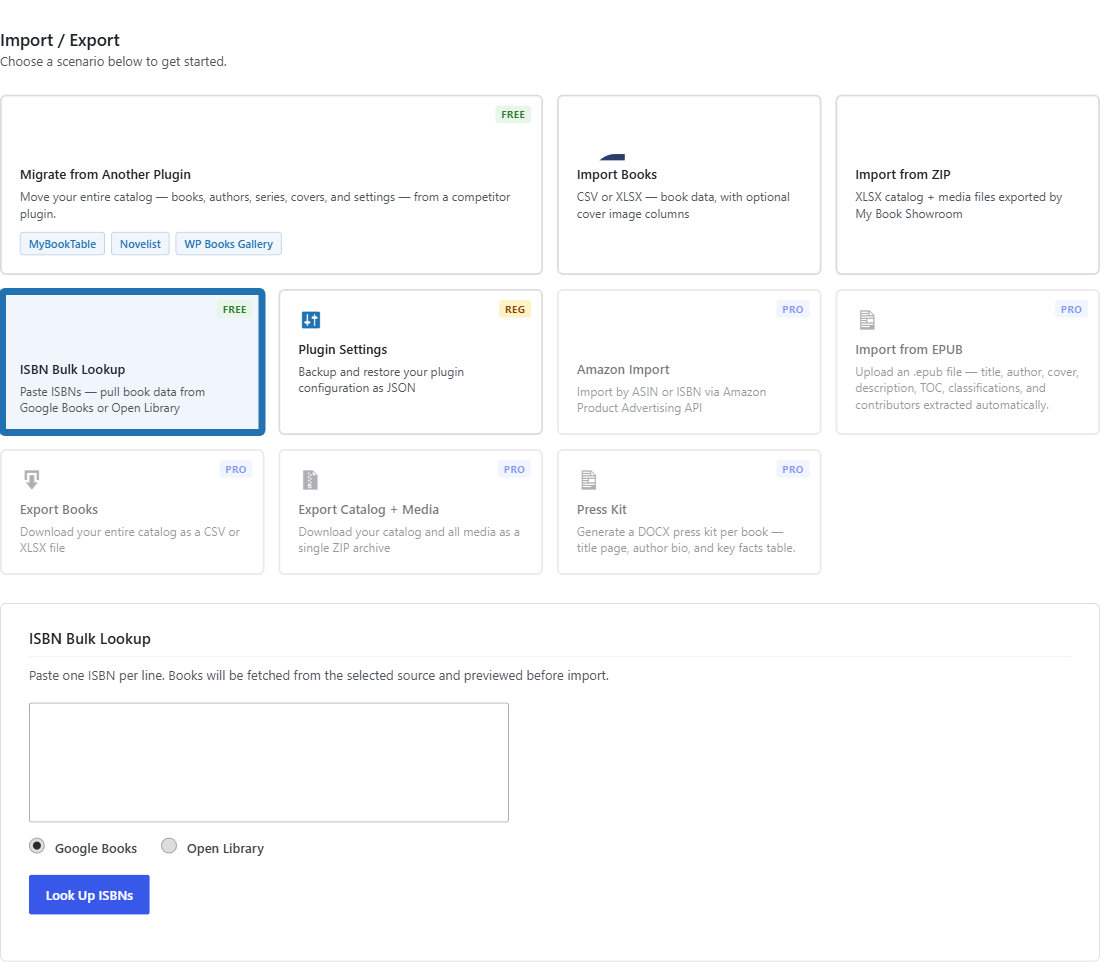
Click the ISBN Bulk Lookup card. The card expands below to reveal a large text area and instructions.
Step 3 — Enter your ISBN numbers
Type or paste your ISBN list into the textarea — one ISBN per line.
Both ISBN-13 (13-digit) and ISBN-10 (10-digit) formats are accepted. MBS normalizes any ISBN-10 you enter to ISBN-13 automatically before querying the APIs, so you do not need to convert them yourself.
You can enter up to 50 ISBNs per batch. If your catalog has more than 50 titles, run this process in multiple batches — one batch of 50, confirm, then start the next.
Copy ISBNs directly from your publisher portal, retailer dashboard, or a spreadsheet column. The textarea accepts any whitespace between numbers, so copying a column from Excel works cleanly.
Step 4 — Run the lookup
Click Look Up ISBNs. MBS queries Google Books first for every ISBN in your list. Any ISBNs not found in Google Books are automatically sent to Open Library as a fallback. You do not need to configure anything for this fallback — it happens transparently.
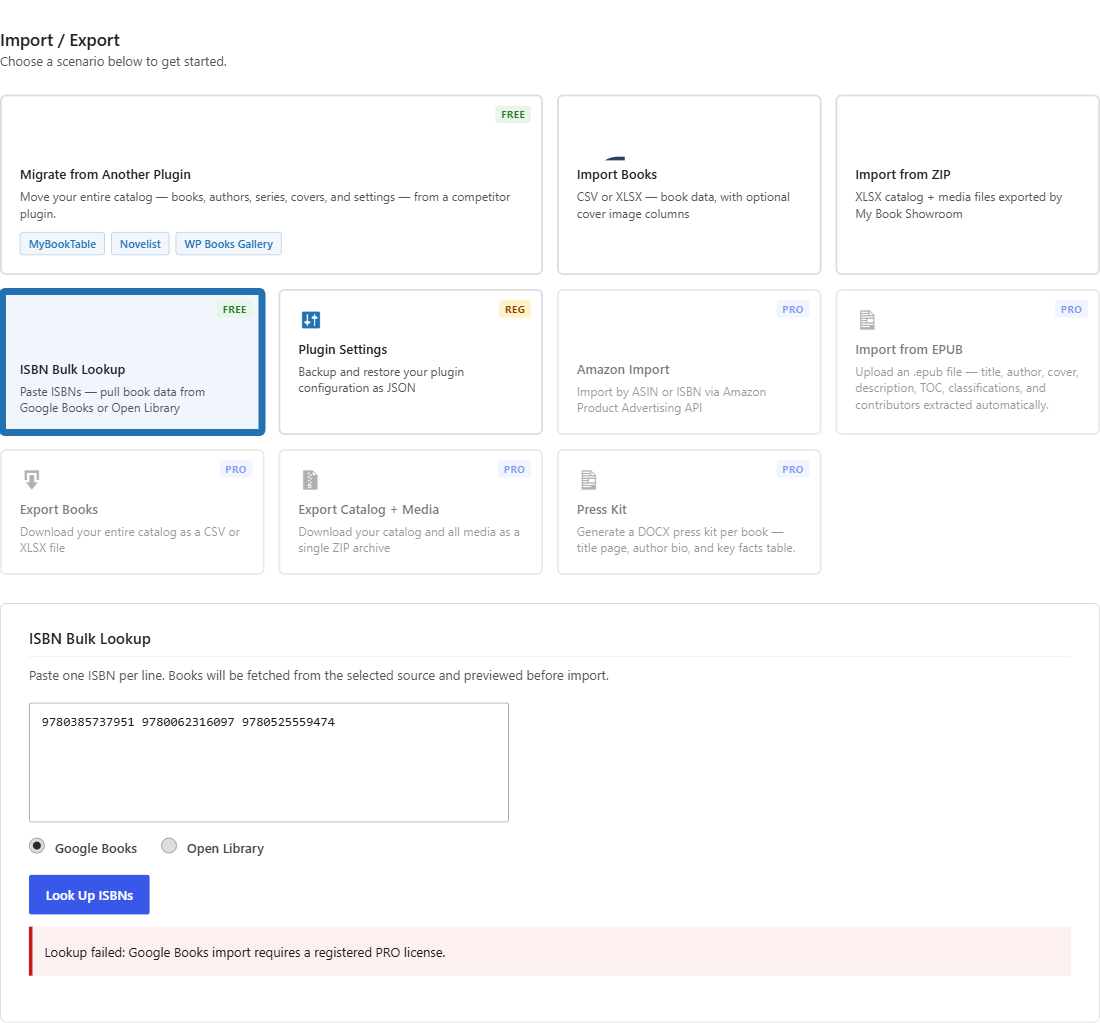
The lookup typically completes in a few seconds for a batch of 50.
Google Books enforces anonymous request quotas. If you regularly import large batches, you can enter a Google Books API key in My Book Showroom → Settings → General to increase your allowed request rate. The API key is optional and not required for occasional use.
Step 5 — Review the candidate list
When the lookup finishes, MBS presents a candidate list — one row per ISBN that returned a result. Each row shows:
- A thumbnail cover preview
- The book title and subtitle
- The primary author name
- A short description excerpt
- The source API that returned the data (Google Books or Open Library)
- A checkbox to include or skip this title

Review the proposed data carefully. If any row shows incorrect metadata — a title mismatch, the wrong edition, a placeholder cover — uncheck that row to exclude it from the import. You can edit the book manually after importing the correct titles.
Any ISBN that returned no result from either API appears in a separate Not Found section at the bottom of the list. You will need to add those books manually using Guide 02: Add Your First Book →.
Duplicate detection: if a book with a matching ISBN already exists in your showroom, MBS flags that row with a Duplicate badge. Duplicates are unchecked by default. You can still check them if you want to re-import the metadata, but be aware that a second book record will be created — MBS does not overwrite existing records automatically.
Step 6 — Confirm the import
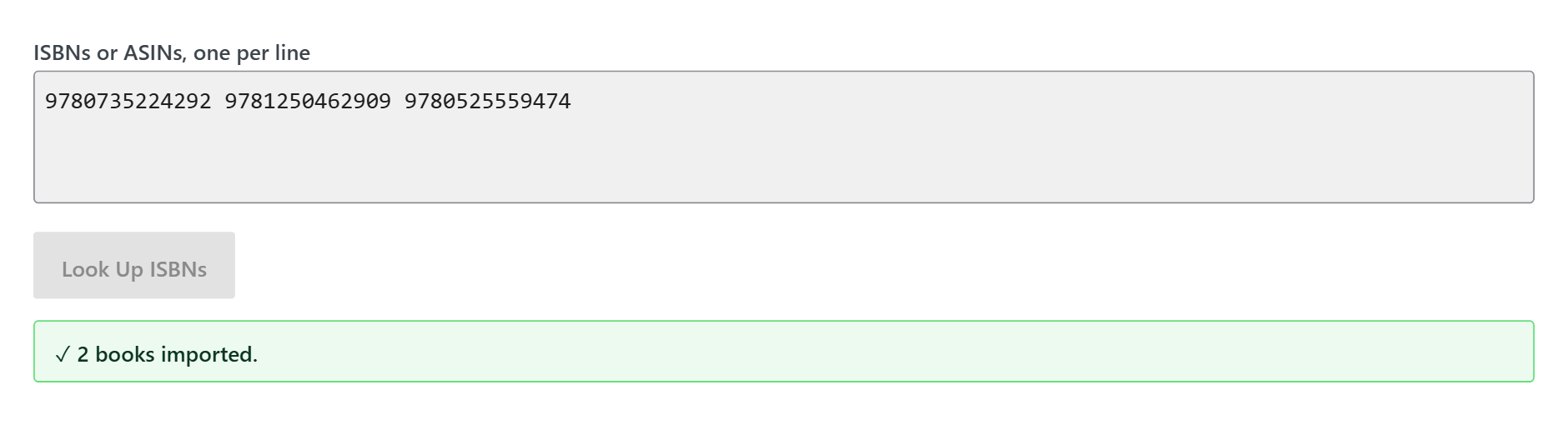
When you are satisfied with your selections, click Confirm Selected.
MBS inserts each checked book using the same pipeline as the CSV importer. New books are created as WordPress Draft posts. They do not appear in your public showroom until you publish them.
Step 7 — Finish each book in the editor
Go to My Book Showroom → All Books (or My Book Showroom in the sidebar to open the dashboard, then click Recently Edited). You will see your newly imported books listed as drafts.
Open each book and:
- Verify the title, author, and description are correct
- Add the Featured Image (cover) — ISBN Bulk Lookup does not import covers
automatically; upload your cover file via the Featured Image panel in the book editor sidebar
- Add format rows and buy links on the Formats tab (see
Guide 04: Buy Links and Retailer Setup →)
- Click Publish when the book is ready to appear in your showroom
Use WordPress bulk edit to publish several draft books at once. From My Book Showroom → All Books, check the books you want to publish, open the Bulk Actions dropdown, choose Edit, and set the Status to Published.