How buy links work in MBS
Every book can have multiple format rows. Each row represents one edition (Kindle, Paperback, Hardcover, Audiobook, etc.) and generates one buy button on the book page and in the showroom grid. You control the format label, price, currency, and retailer URL for each row independently.
Step 1 — Open the Formats tab
Open any book in the editor and click the Formats tab in the Book Editor metabox. If the book has no rows yet, the section shows only the + Add Format button.

Step 2 — Add your first format row
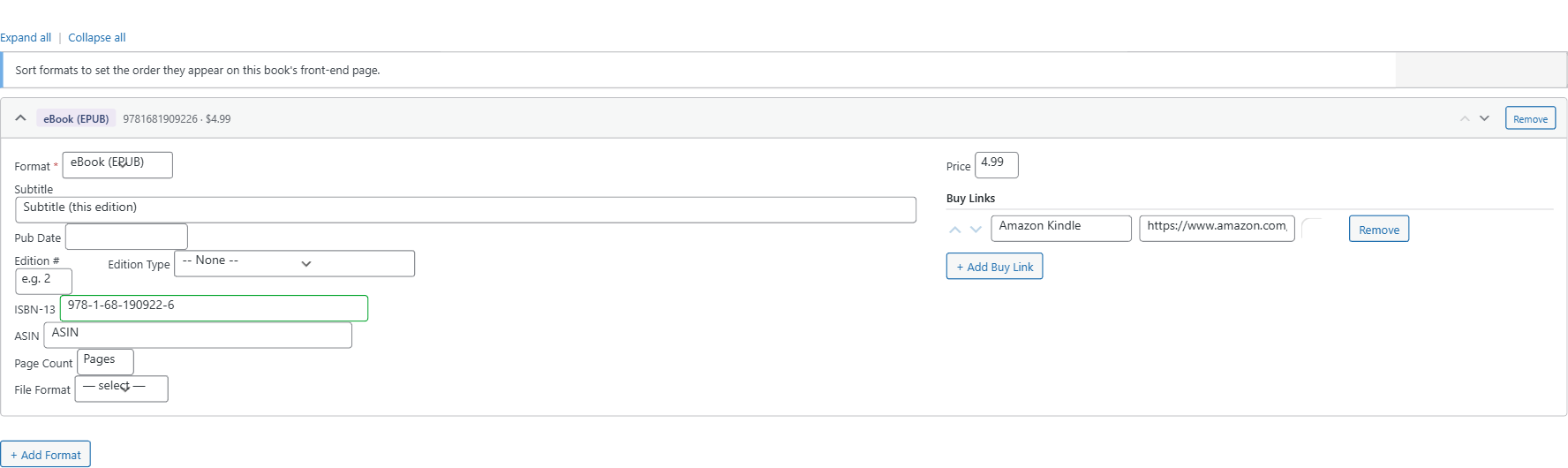
Click + Add Format. A row appears. Expand it to fill in:
- Format — choose the edition type from the dropdown. Default options
include eBook (EPUB), Paperback, Hardcover, Audiobook, Board Book, Special Edition, and Other. Custom types can be defined in Settings → Formatting
- Price — enter the retail price as a number (e.g.
9.99). Leave blank
for free, pay-what-you-want, or formats with no public price
- Buy Link — click + Add Buy Link within the row, then paste the
full URL to the book on the retailer website
Click Update (or Publish for a new book) to save.
Step 3 — Add rows for additional editions
Repeat Step 2 for each edition you want to list. Common multi-format setups:
- Kindle + Paperback — standard Amazon-only distribution
- Kindle + Paperback + Kobo + Barnes & Noble — wide distribution
- Hardcover + Paperback + Kindle + Audiobook — full catalog
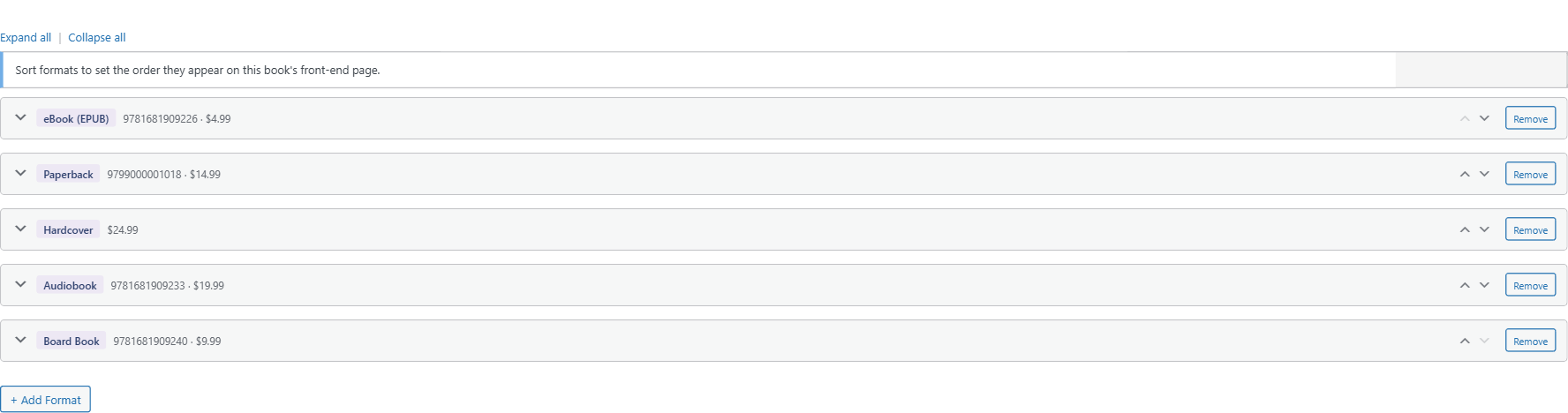
Each row generates a separate buy button. They appear on the front-end book page in the same order they appear in the editor.
Step 4 — Reorder format rows
Use the sort controls on each row to change its position. Put your primary edition first — it is the edition shown by default when a layout renders only one buy button at a time.
Step 5 — Configure the buy button label
All buy buttons use Buy Now as the default label. To change it globally:
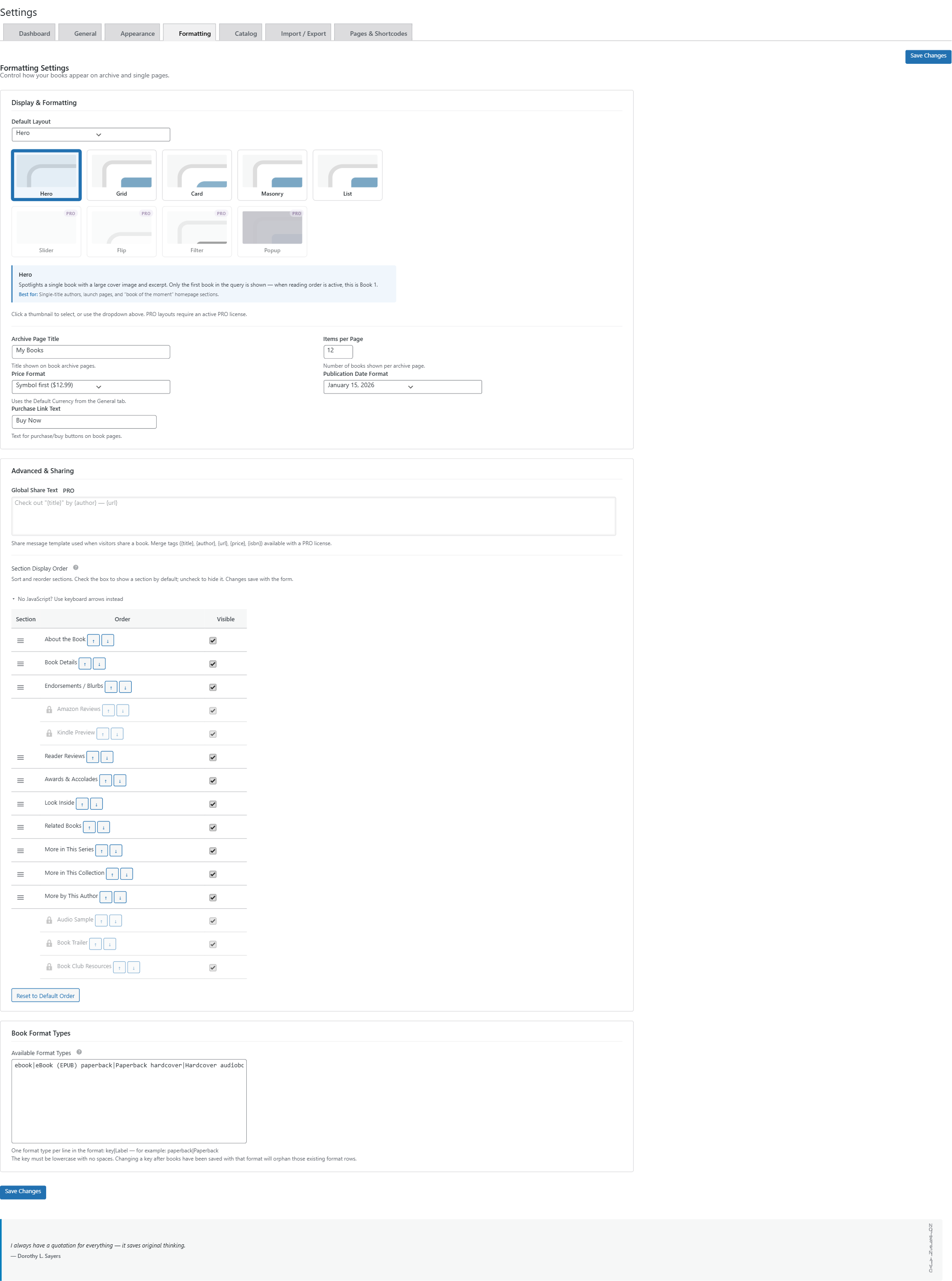
- Go to My Book Showroom → Settings → Formatting tab
- Find the Purchase Link Text field
- Enter your preferred label (e.g. Order Now, Get the Book, Shop)
- Click Save Changes
The label applies to all buy buttons across your entire showroom.
Step 6 — Verify on the front end
Save the book and click View to open the live book page. Each format row you added appears as a labeled buy button showing the format name and price.
Key notes
- Unlimited rows — add as many format rows per book as you need
- Retailer URL — paste the complete URL including
https://. MBS does
not shorten or modify the URL on the FREE tier
- Affiliate links — automatic affiliate tag insertion requires a PRO
license; see Guide 16: Amazon PA-API for details
- ASIN field — entering an ASIN in a format row (inside the Formats
tab) enables the Amazon import tool for that edition; add the format row first, then fill in the ASIN field within the row