What you will need
- A self-hosted WordPress site (version 5.9 or later, PHP 8.0+)
- WordPress administrator credentials
- The My Book Showroom plugin installed (as a
.zipupload or from WordPress.org)
My Book Showroom requires a self-hosted WordPress site (wordpress.org). It does not work on WordPress.com free or personal plans.
No license key is required to complete this guide. Every step shown here works out of the box with a fresh install.
Step 1 — Find the plugin in your Plugins list
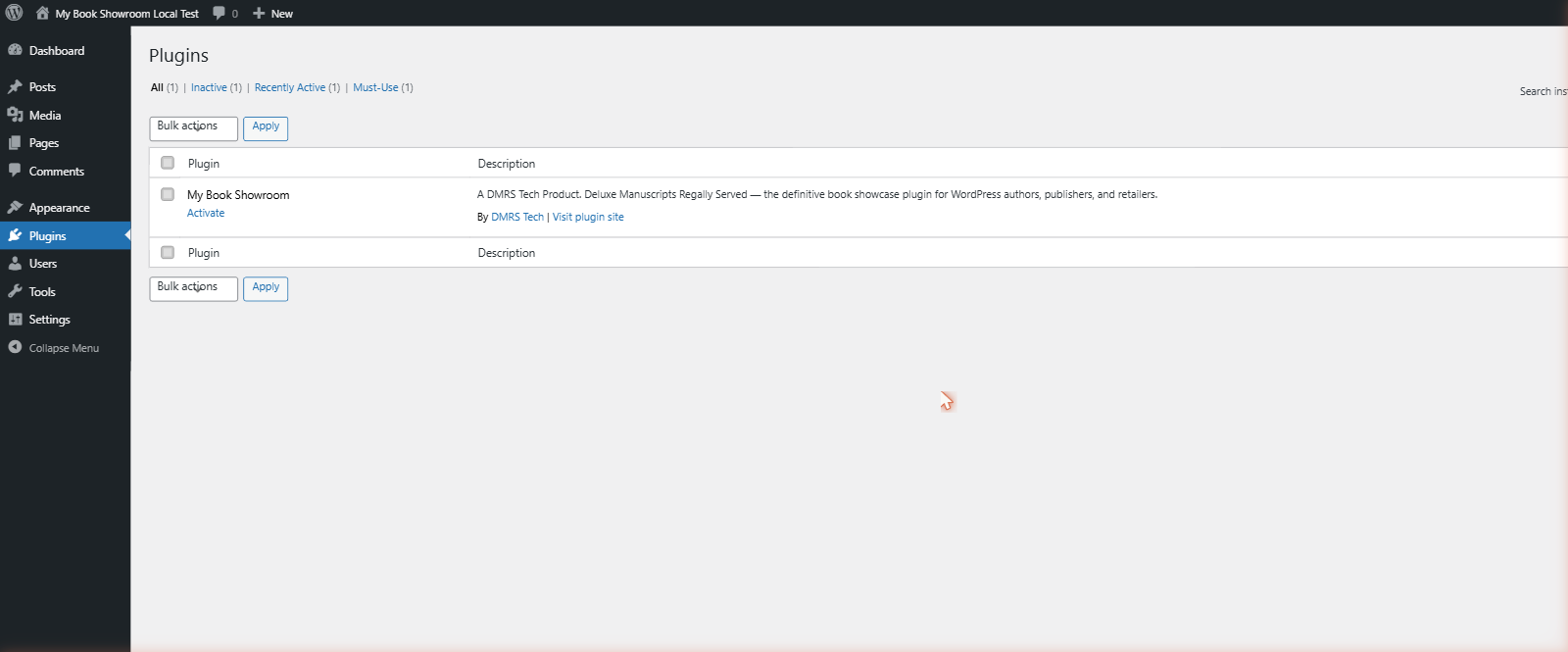
Log in to your WordPress admin panel (/wp-admin) and go to Plugins.
My Book Showroom appears in the list with an Activate link below it.
Step 2 — Activate the plugin
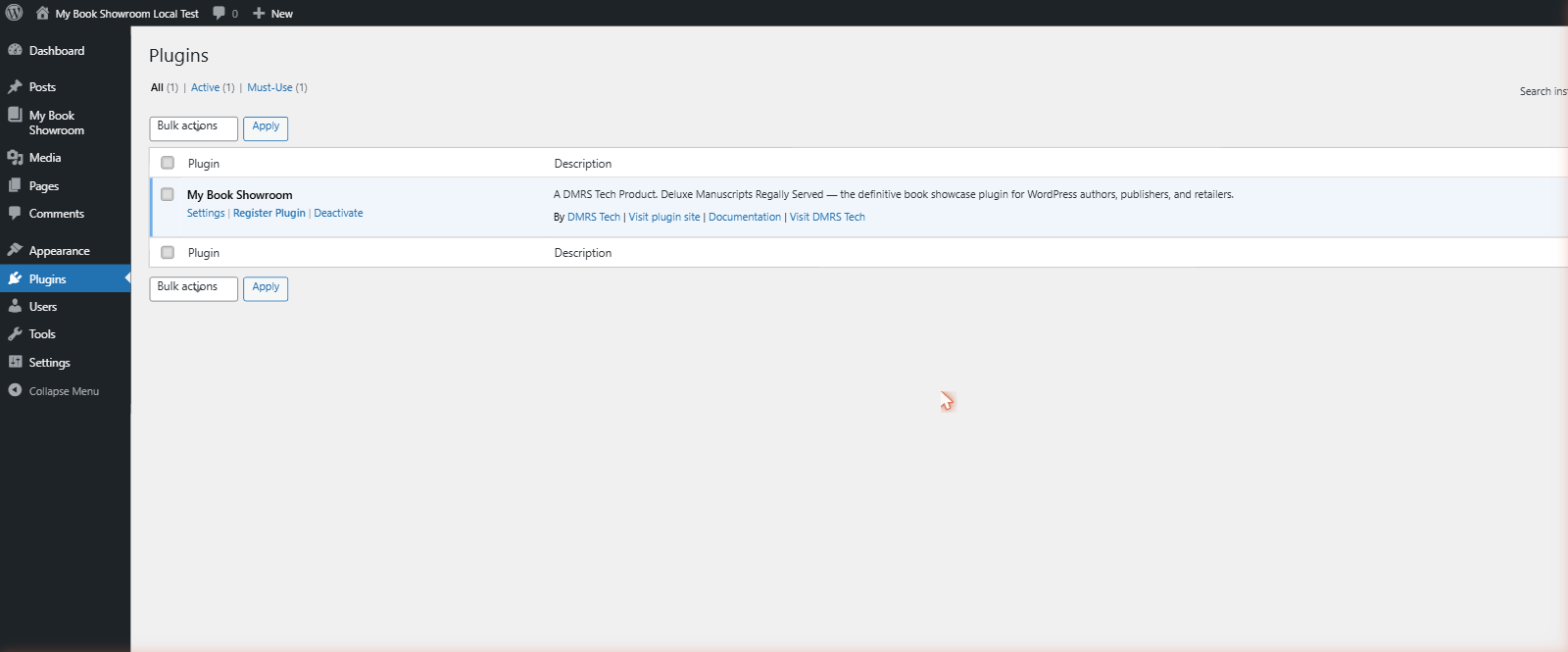
Click Activate under My Book Showroom.
WordPress activates the plugin instantly. The action links change to Settings | Register Plugin | Deactivate, and My Book Showroom appears in the left sidebar.
Step 3 — Open your dashboard
Click My Book Showroom in the left sidebar.
The dashboard opens in its empty-catalog onboarding state. The action bar across the top gives you quick access to every major feature. The left column shows a welcome prompt inviting you to add your first book.
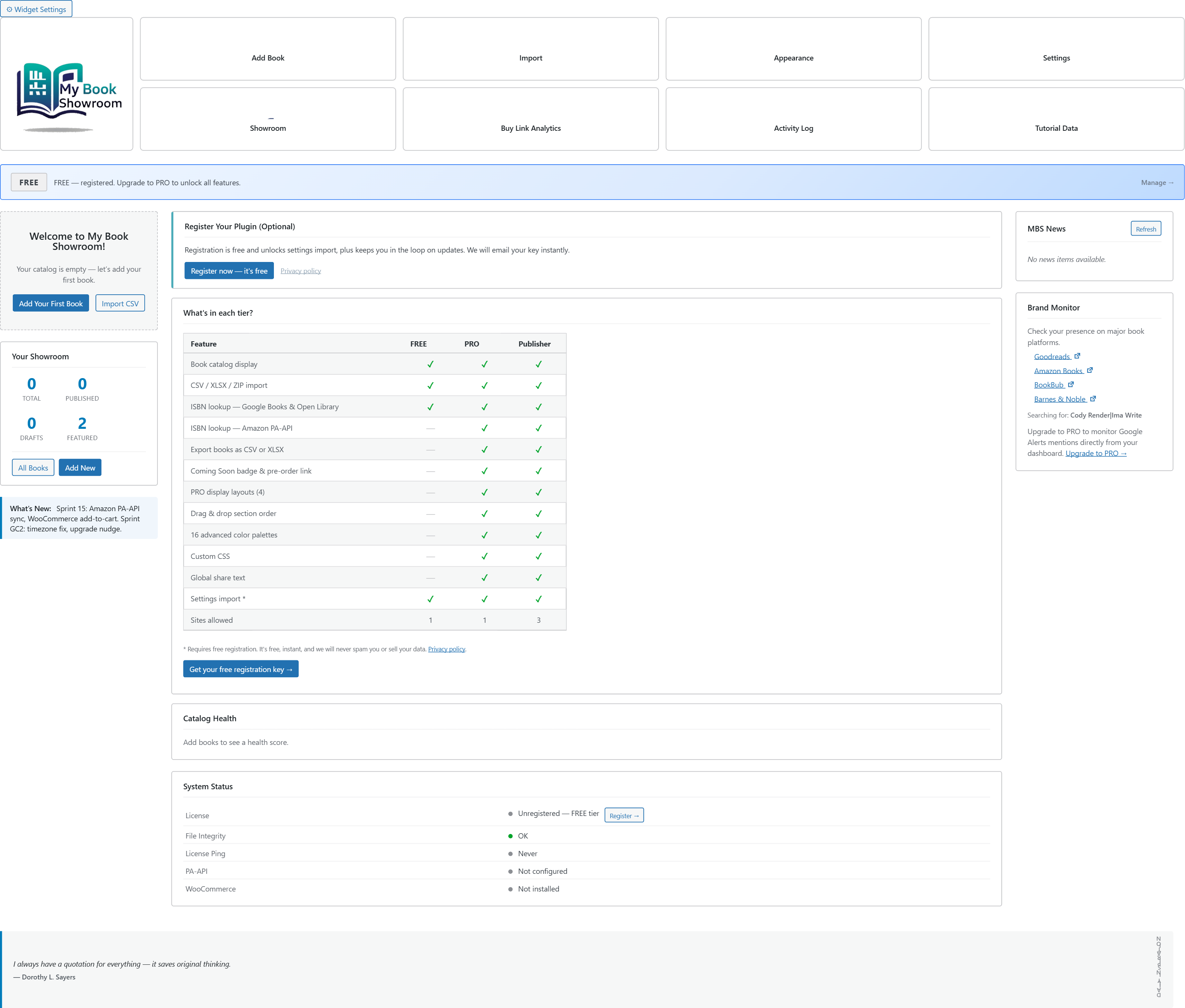
The eight tiles in the action bar — Add Book, Import, Appearance, Settings, Showroom, Buy Link Analytics, Activity Log, and Tutorial Data — are your primary navigation controls. You will use them throughout these guides.
Step 4 — Install the tutorial catalog
My Book Showroom ships with a seven-book sample catalog that demonstrates every feature: series, collections, universes, multi-author books, spinning video trailers, endorsements, awards, BISAC / Thema / BIC classification, ARC campaigns, and Coming Soon books.
- Click the Tutorial Data tile in the action bar
- The Tutorial Data panel opens below the action bar
- You will see a Not Installed badge and the Install Tutorial Data button

- Click Install Tutorial Data
- Wait approximately 20–30 seconds while the catalog downloads and imports
When the import completes the panel updates to show an Installed badge with Reinstall and Remove Tutorial Data buttons.

The tutorial catalog adds sample books, cover images, audio clips, video trailers, and taxonomy terms to your WordPress library. You can remove everything at any time by clicking Remove Tutorial Data in the same panel. Nothing in the tutorial catalog affects your real books or settings.
Step 5 — Explore your dashboard
Click anywhere outside the panel to close it, then take a moment to explore.
With the tutorial catalog installed your dashboard now shows:
- Catalog stats — total books, published, drafts, featured count
- Recently Edited — the seven tutorial books
- Catalog Health — a metadata completeness score across your library
- System Status — license state, file integrity, ping status